Palworld 1.0 Dedicated Server Guide: Setup, Settings, Mods & Fixes
Set up and optimize a Palworld 1.0 dedicated server with official requirements, recommended settings, mod migration steps, update commands, and fixes for lag, crashes, and connection problems.

Palworld 1.0 is no longer the Early Access game your server was originally built around. Pocketpair’s full-release update expanded the world, reworked progression, changed bases and multiplayer, added new Pals, and altered the assumptions behind many old configurations and mods.
That makes version 1.0 a good time to start a persistent world—but it also means an older server should not be updated casually.
This guide explains how to set up or migrate a Palworld 1.0 dedicated server, choose sensible settings, prepare mods, and fix the most common post-update problems. It reflects Palworld version 1.0.3, released August 12, 2026.
Quick answer: Pocketpair recommends at least a four-core CPU, 16 GB of memory, SSD storage, and UDP port 8211. An 8 GB server may boot, but the official documentation warns that it has a higher risk of out-of-memory crashes. Back up the world, remove incompatible pre-1.0 mods, update the server and client to matching versions, and review every custom setting before inviting players back.
What changed in Palworld 1.0?
Palworld 1.0 launched on July 10, 2026 with what Pocketpair described as major additions and large-scale changes across base building, multiplayer, graphics, and other systems.
The largest additions include:
- Sunreach, a vast floating-island region with unique resources, specialized mining requirements, and towers above the clouds
- The World Tree, a long-teased location that now has a central role in the game’s expanded world
- New settlements, NPCs, sub-missions, and enemy bases at sea
- An overhaul of Wildlife Sanctuaries
- New Pals, skills, equipment, items, and higher-tier Pal Spheres
- Reworked missions, progression, Tower Bosses, work suitability, combat, raids, bases, and building
- Dedicated-server behavior and settings changes
- Broad UI, graphics, sound, and balance improvements

Sunreach is one of the largest new areas in Palworld 1.0. Image: Pocketpair.
The update supports existing saves, but Pocketpair explicitly recommends beginning with a fresh character for the fullest new experience. Main- and sub-mission progress was reset as part of the reward changes, although some tutorial and Tower Boss missions may be marked complete based on existing defeat progress.

The World Tree is now part of the expanded Palworld experience. Image: Pocketpair.
Palworld 1.0 dedicated server requirements
Pocketpair’s official server documentation lists the following operating requirements:
- CPU: Four cores or more recommended
- Memory: 16 GB recommended; more than 32 GB for larger environments
- Network: UDP port 8211 by default; the port is configurable
- Storage: A fast SSD is recommended
- Operating system: 64-bit Windows or 64-bit Linux
The documentation says an 8 GB server can boot, but it is more likely to crash because of insufficient memory. It also warns that low-performance storage can contribute to save corruption.
Those are platform requirements, not a promise that every 16 GB server will support the same workload. Actual demand changes with:
- Concurrent player count
- Number and size of guild bases
- Pals assigned to each base
- Building count
- Mods
- Dropped-item limits
- Exploration and world activity
- Backup frequency
Practical sizing guidance
For a small private group using mostly default settings, the official 16 GB recommendation is the safest starting point. Consider additional memory and CPU headroom when running a larger community, heavy mods, many bases, or high Pal and building limits.
Avoid treating BaseCampWorkerMaxNum as a free upgrade. Pocketpair’s configuration reference explicitly notes that increasing the maximum number of Pals per base raises processing load. The same warning applies to increasing bases per guild.
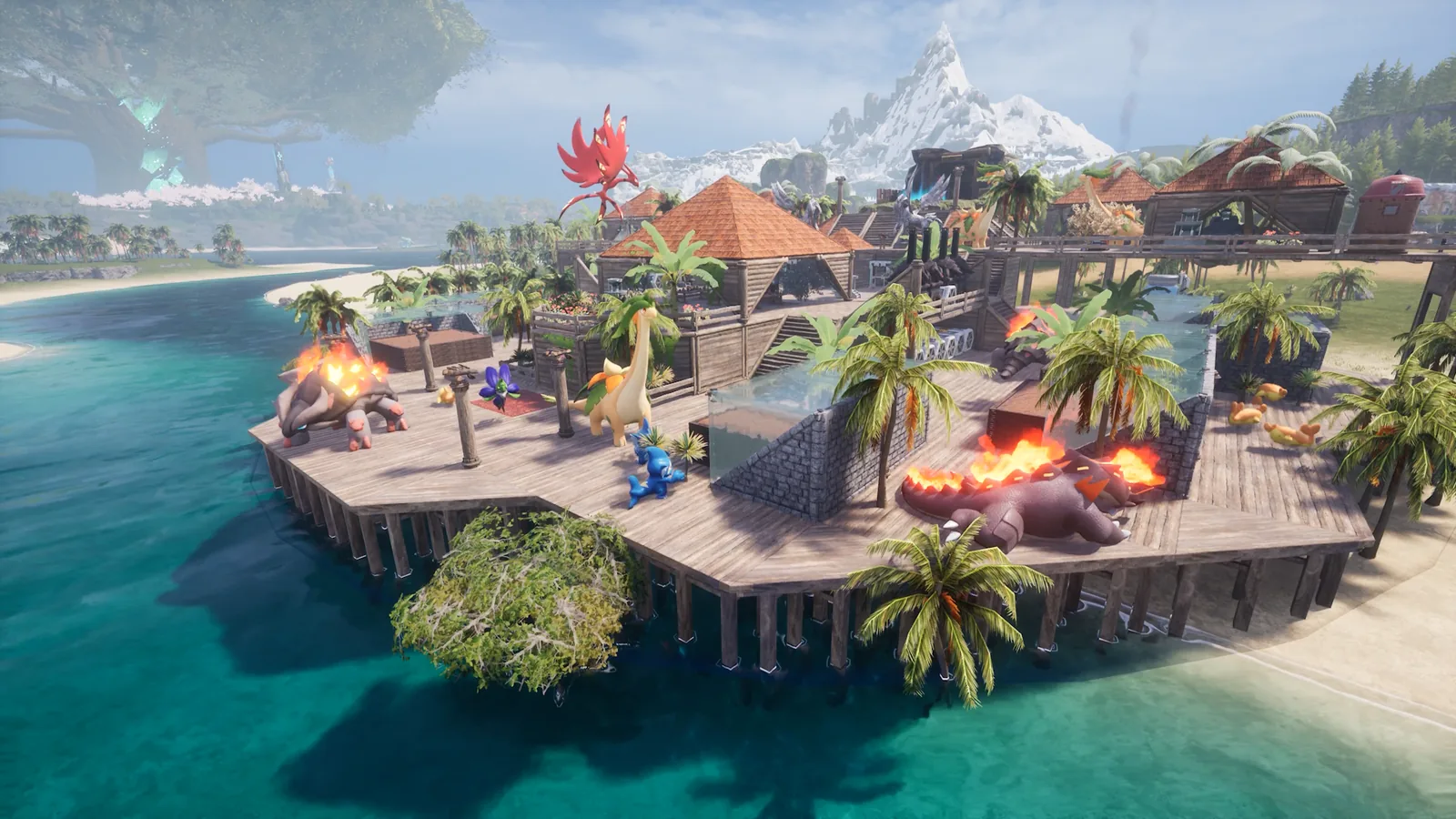
Large bases and more workers create additional server workload. Image: Pocketpair.
How to set up a Palworld 1.0 dedicated server
You have two practical paths: use managed Palworld hosting or operate the server yourself.
A managed host removes the work of maintaining SteamCMD, firewall rules, process supervision, storage, and routine updates. If you want a persistent world without turning one player’s computer into shared infrastructure, you can start with Hostari.
For self-hosting, Pocketpair supports:
- Windows through the Steam client
- Windows through SteamCMD
- Linux through SteamCMD
- Pocketpair’s official Docker image and sample Compose files
Pocketpair advises against Docker Desktop for this workload because its storage I/O behavior increases the risk of save corruption and malfunction. The official Linux Docker image is a different deployment path and is intended for advanced operators.
SteamCMD installation or update
Palworld Dedicated Server uses Steam application ID 2394010. A typical SteamCMD update is:
steamcmd +login anonymous +app_update 2394010 validate +quit
Stop the running server before replacing binaries. Updating files beneath a live process can produce an inconsistent deployment.
Copy and edit the correct configuration file
The server creates its saved configuration directories after its first launch. Copy the default settings into the active configuration file, then edit PalWorldSettings.ini.
Do not edit DefaultPalWorldSettings.ini and expect the live server to change. Pocketpair’s documentation explicitly says edits to that default file do not affect the running configuration.
Common paths are:
Linux:
Pal/Saved/Config/LinuxServer/PalWorldSettings.ini

Windows:
Pal\Saved\Config\WindowsServer\PalWorldSettings.ini
Before editing:
- Stop the server cleanly.
- Back up the entire
Pal/Saveddirectory. - Keep a copy of the current
.inifile. - Compare custom settings with the version 1.0.3 documentation.
- Restart and inspect logs before opening access to players.
Best Palworld 1.0 server settings
There is no universal “best” configuration. The right settings depend on whether your group wants relaxed exploration, default progression, challenging survival, or a high-population community.
For a first 1.0 world, begin close to Normal difficulty. Change one group of settings at a time and keep notes, so you can identify which change caused a performance or balance problem.
Recommended priorities for a private co-op world
- Keep the base and worker limits near their defaults initially.
- Enable backups if the added disk activity is acceptable.
- Set a strong
ServerPasswordfor a private server. - Set a separate, strong
AdminPassword. - Review
CrossplayPlatformsrather than relying on obsolete options. - Use a descriptive
ServerNameandServerDescription. - Avoid unlimited building and dropped-item settings until you understand their performance cost.
- Permit client mods only if every player understands the compatibility and security implications.
Palworld 1.0’s dedicated-server defaults were adjusted to more closely match single-player Normal difficulty. That means copying an old “best settings” file from before 1.0 can unintentionally override Pocketpair’s newer balance decisions.
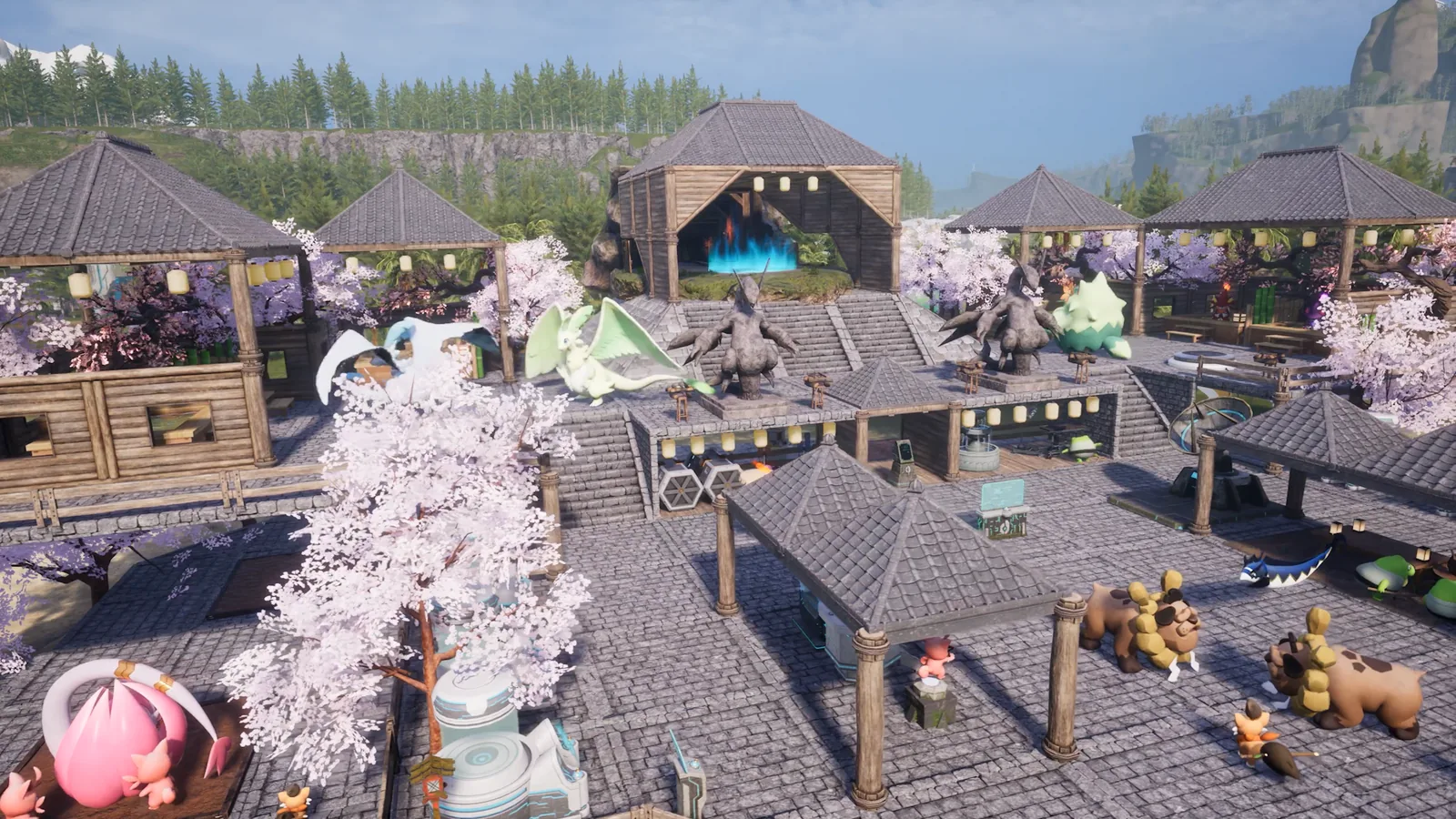
Palworld 1.0 reworked graphics, settlements, bases, and many balance assumptions. Image: Pocketpair.
Settings that affect performance
Pay particular attention to:
BaseCampMaxNum: total bases across the serverBaseCampMaxNumInGuild: bases allowed per guild; increasing it raises loadBaseCampWorkerMaxNum: Pals per base; increasing it raises loadMaxBuildingLimitNum: per-player building cap, where zero means unlimitedPhysicsActiveDropItemMaxNum: dropped items that can use physicsServerReplicatePawnCullDistance: how far Pals synchronize to playersbIsUseBackupSaveData: enables world backups but increases disk load
A stable server is usually more fun than one with every limit raised. Increase capacity gradually while watching memory use, CPU saturation, save duration, and player latency.
Crossplay and multiplayer settings
The current configuration reference uses CrossplayPlatforms. Its documented default is:
(Steam,Xbox,PS5,Mac)
The older AllowConnectPlatform parameter is not available in this version. If an old guide tells you to use it, the guide is outdated.
Palworld 1.0 also added a setting that can display the player ID of the person who placed a structure. This can help administrators investigate abandoned or problematic construction on shared servers.

Version 1.0 includes dedicated-server and multiplayer adjustments alongside new Pals and locations. Image: Pocketpair.
Palworld 1.0 mods: remove old files before migrating
This is the most important migration warning.
Before 1.0 launched, Pocketpair told players to remove old mods from their installation directories. Disabling them was not enough. The developer warned that old mod files could remain active or conflict with the full release.
For a server migration:
- Stop the server.
- Make a complete backup.
- Record the installed mods and versions.
- Remove pre-1.0 mod files from the server—not merely from a launcher list.
- Update the vanilla server to the current version.
- Launch it without mods and confirm that the world loads.
- Add only mods whose authors explicitly support the current Palworld release.
- Restore mods individually or in small groups.
- Test a new world before risking the production save.
Pocketpair released a PC patch on July 30 specifically to improve stability when playing with mods, but that does not make every old mod compatible.
The bAllowClientMod setting controls whether players with mods enabled can join. Enabling it should be a deliberate community policy, not a default reaction to connection failures.

Palworld 1.0 added and changed Pals, skills, equipment, work suitability, and progression. Image: Pocketpair.
Updating an existing server safely
Use this sequence for future 1.0.x patches:
- Announce maintenance to players.
- Stop the server cleanly.
- Back up
Pal/Saved, configurations, and mod files. - Verify that the backup can be read or extracted.
- Update the server through SteamCMD, your container workflow, or your hosting panel.
- Update or remove incompatible mods.
- Review Pocketpair’s patch notes for migration warnings.
- Start the server privately.
- Confirm the world, guilds, bases, inventories, and permissions.
- Reopen access.
Players and the server should run compatible versions. If Palworld updates but the server has not, users may see connection failures until the server is upgraded.
How to fix common Palworld 1.0 server problems
Players cannot connect after an update
Check these in order:
- Confirm the server and clients are on the same current version.
- Restart Steam clients so pending updates install.
- Verify the server process finished updating successfully.
- Confirm UDP 8211 or your custom game port is reachable.
- Review
CrossplayPlatforms. - Temporarily remove mods and retest.
- Inspect server logs rather than repeatedly restarting without evidence.
The server crashes or runs out of memory
- Compare the machine with Pocketpair’s 16 GB recommendation.
- Reduce base, building, worker, and dropped-item limits.
- Remove suspect mods.
- Confirm the server uses fast local SSD storage.
- Check whether backup operations are overwhelming slow storage.
- Test a clean, unmodded world to separate save problems from host problems.
The server lags with several active bases
Bases contain many continuously simulated systems. Reduce aggressive worker/base settings, inspect CPU saturation, and avoid raising every cap at once.
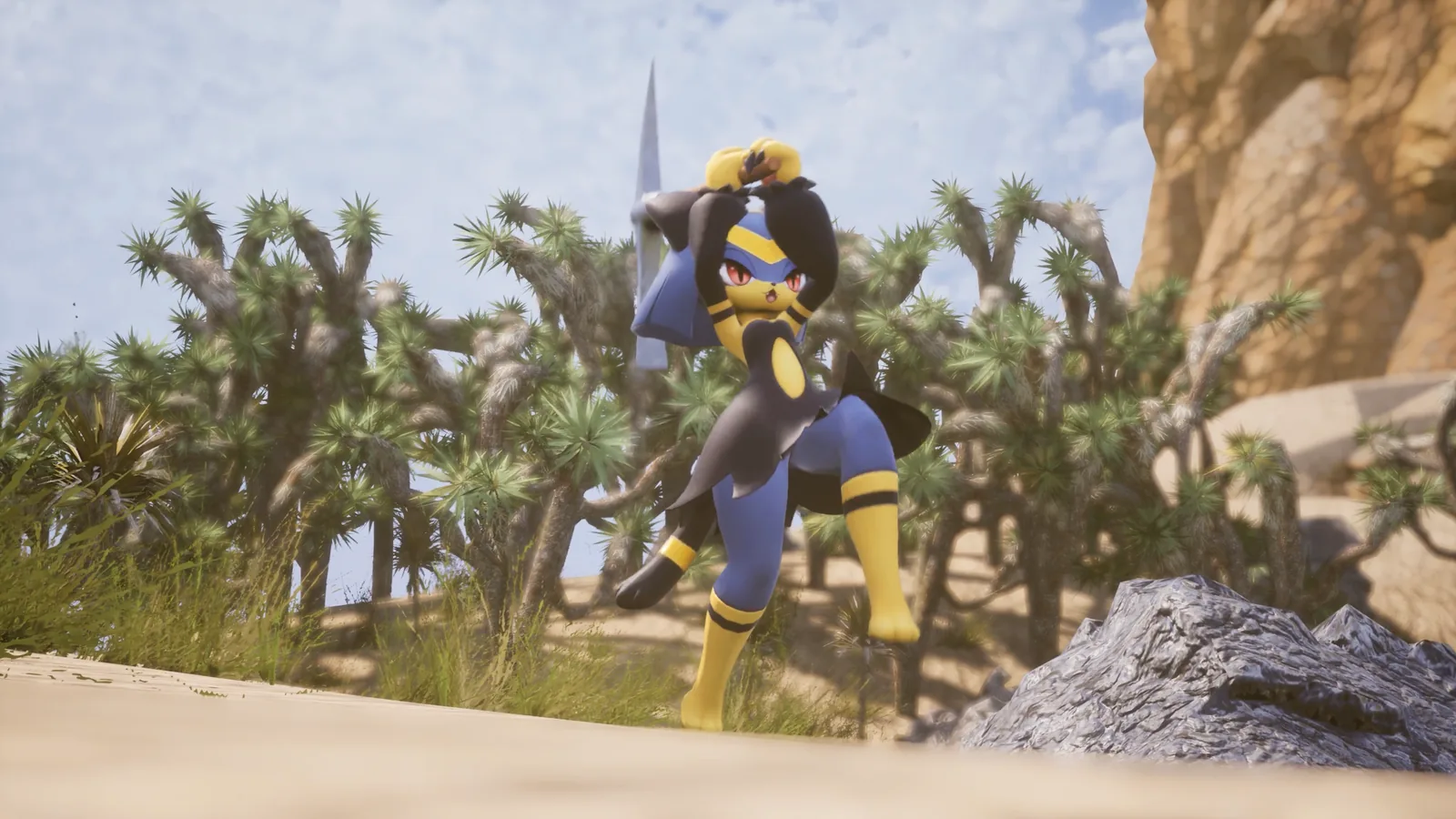
Work-suitability and base behavior changed in version 1.0; worker-heavy bases can also increase server load. Image: Pocketpair.
Settings are not saving
- Stop the server before editing.
- Edit the active
PalWorldSettings.ini, notDefaultPalWorldSettings.ini. - Check file ownership and write permissions.
- Ensure the file remains valid INI syntax.
- Verify that your hosting panel is not regenerating the file from separate fields.
- Restart once and read the effective configuration from logs or the management interface.
The old world behaves strangely after migration
Pocketpair changed world boundaries and warns that saves from version 0.7.3 or earlier may place players outside the updated area. In that case, use Emergency Escape from the Options menu.
Mission progress, old mods, changed world settings, and new balance defaults can also make an upgraded world differ from a fresh one. Preserve the original backup rather than overwriting it during troubleshooting.

Version 1.0 expands Palworld’s missions and story while resetting some mission progress. Image: Pocketpair.
Should you start a fresh world for Palworld 1.0?
Start fresh when your group wants:
- The intended 1.0 progression curve
- A clean mod baseline
- New mission rewards without legacy-state complications
- New default balance
- Easier troubleshooting
Keep the old world when preserving bases and history matters more than experiencing every system from the beginning. Either choice is valid, provided the old save is backed up before migration.
A useful compromise is to archive the Early Access world, run it privately after the update, and let the group decide after testing both options.
Is a dedicated server worth it for Palworld 1.0?
A dedicated server makes sense when your group wants a world that remains available without the original host being online. It is especially useful for groups that play at different times, maintain complex bases, or want consistent administration and backups.
Self-hosting offers control, but it also makes you responsible for hardware, ports, patching, logs, backups, and recovery. Managed hosting trades some low-level control for faster setup and less maintenance.
If your group wants to explore Sunreach, rebuild around the new 1.0 systems, and keep the world online continuously, launch your Palworld server with Hostari.

Palworld 1.0 expands exploration and overhauls Wildlife Sanctuaries. Image: Pocketpair.
Palworld 1.0 dedicated server FAQ
What port does a Palworld server use?
The default game port is UDP 8211, and it can be changed. Self-hosted servers require appropriate firewall and router configuration.
How much RAM does a Palworld server need?
Pocketpair recommends 16 GB, with more than 32 GB for larger environments. The official documentation says 8 GB may boot but has a greater risk of out-of-memory crashes.
Can I keep my Early Access save?
Yes, but Pocketpair recommends starting fresh for the new experience. Back up the save and expect changes to missions, world boundaries, balance, and mods.
Do old Palworld mods work in 1.0?
Do not assume they do. Pocketpair instructed users to remove old mod files before upgrading because disabling them might not be sufficient. Reinstall only explicitly compatible versions.
Does Palworld 1.0 support crossplay on dedicated servers?
The current server documentation lists Steam, Xbox, PS5, and Mac in the default CrossplayPlatforms setting. Actual access also depends on current platform versions and server configuration.
Why is my Palworld server not appearing?
Confirm the process is running, the server and client versions match, the game port is reachable, the public IP/port settings are appropriate, and crossplay options are correct. Remove mods temporarily and inspect logs if the problem continues.
Official sources
- Palworld 1.0 official release changelog
- Pocketpair’s Palworld Dedicated Server Guide
- Official server requirements
- Official configuration parameters
- Official mod installation documentation
- Pocketpair’s pre-1.0 mod warning
All Palworld screenshots in this article are official Pocketpair promotional images from the Palworld 1.0 changelog.
Related reading

The Ultimate Palworld Pal Breeding and Hatching Guide
Welcome to the ultimate guide on Pal breeding and hatching in Palworld , the game where adventure meets creature collection and survival in an …

Choosing the Best Starter Pals for Your Base in Palworld
Selecting the best starter Pals for your base in Palworld is a pivotal decision that shapes your gameplay experience. This comprehensive guide delves …